
What it does
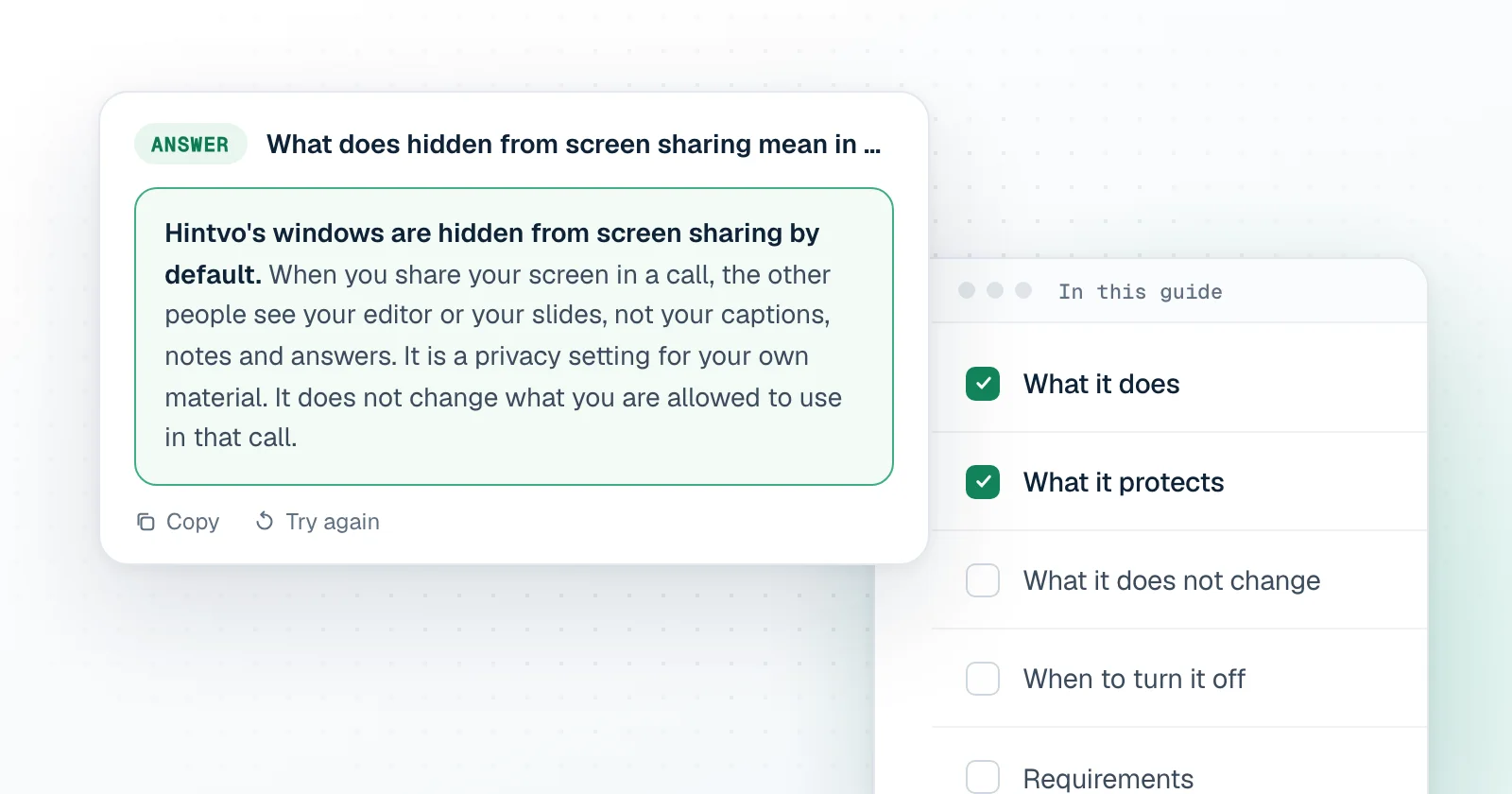
A shared screen shows everything on it. With this setting on, Hintvo's windows stay out of what you share: they are on your screen, and they are not in the picture the others receive. It is on by default, and you can turn it off in Settings.
What it protects
- The transcript of the call, which includes what other people said.
- Your notes and action items.
- Code from your project that an answer quotes.
- Your CV and the job post, in an interview session.
None of that belongs on a shared screen by accident. This is the same reason people close their inbox before presenting.
What it does not change
- The rules. Use Hintvo only where AI help is allowed. Check the rules of your company, school or interviewer first, and respect a no.
- Your duty to tell people. If the call is being transcribed and the law or their rules require it, you still say so.
- What someone standing behind you can see. It concerns what is shared in the call, not your physical screen.
When to turn it off
- When you want to show Hintvo itself: demonstrating it to a teammate, or walking someone through the notes.
- When you are recording your own screen for a tutorial and the app should be in it.
Requirements
It works on both platforms: macOS 14.2 or later, and Windows 10 (version 2004) or later. On Windows, that version is where the system first supports keeping a window out of screen capture.